

Overview
The DC BEPS was created to help meet the energy and climate goals of the Sustainable DC plan and to emissions and energy consumption by 50% by 2032.BPS Resources
Filing & Reporting
The District’s energy benchmarking law requires all buildings >25,000 ft² to annually track their energy and water efficiency and report the results to DOEE by May 1.- BEPS Period 1: Private buildings ≥50,000 ft² and DC-owned ≥10,000 ft²
- BEPS Period 2: Private buildings ≥25,000 ft² and DC-owned ≥10,000 ft²
- BEPS Period 3: Private buildings and DC-owned ≥10,000 ft²
Configuration
Follow these steps to ensure that the property is ready for compliance analysis:- Confirm the selected Reporting Period: Emissions calculations, penalty values, and decarb pathways all depend on the selected reporting period. Change the reporting period to see how property performance over different 12-month time frames impacts compliance.
- Click on Details button to ensure that there is a high Data Completeness value associated with the reporting period. Data completeness should be as close to 100% as possible to ensure accurate analysis.
Calculating BPS Targets
A building’s EUI target is based on the compliance pathway selected for the property.- Standard Target Pathway: Meet a prescribed Energy Star Score, ESPM WN Source EUI or ESPM Source EUI target
- Performance Pathway: Reduce ESPM Adjusted Site EUI, WN Site EUI or Site EUI by 20% from Baseline
- Prescriptive Pathway: Conduct and audit, create an action plan, implement measures, and complete monitoring, evaluation, and verification
- Alternative Compliance Pathway: Based on special criteria that must be met
Abisko allows users to explore all standard target and performance pathways for multiple metrics.
Standard Target Pathway
A building’s standard target is based on its ESPM property type. Only high-performing property types as defined by DC, are eligible for the Standard Pathway. These standards are based on calendar year 2019 benchmarking data.Eligible ESPM Property Types
Eligible ESPM Property Types
- Adult Education
- Ambulatory Surgical Center
- Automobile Dealership
- Bank Branch
- Bar/Nightclub
- Barracks
- Courthouse
- College/University
- Convenience Store with Gas Station
- Convenience Store without Gas Station
- Data Center
- Drinking Water Treatment & Distribution
- Enclosed Mall
- Fast Food Restaurant
- Financial Office
- Food Sales
- Food Service
- Hospital (General Medical & Surgical)
- Hotel
- Laboratory
- Lifestyle Center
- Medical Office
- Multifamily Housing
- Office
- Other – Education
- Other – Lodging/Residential
- Other – Mall
- Other – Restaurant/Bar
- Other – Specialty Hospital
- Outpatient Rehabilitation/Physical Therapy
- Pre-school/Daycare
- Prison/Incarceration
- Residence Hall/Dormitory
- Residential Care Facility
- Restaurant
- Retail Store
- Self-Storage Facility
- Senior Care Community (also known as Senior Living Community)
- Strip Mall
- Supermarket/Grocery Store
- Urgent Care/Clinic/Other Outpatient
- Veterinary Office
- Vocational School
- Wastewater Treatment Plant
- Wholesale Club/Supercenter
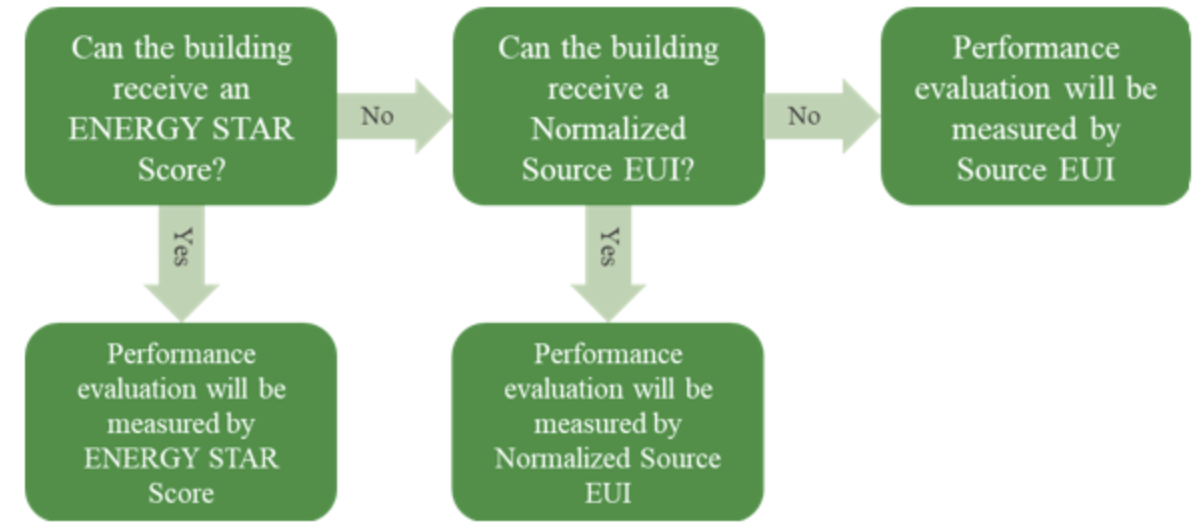
Users can select which metric they would like to evaluate against in the BPS report.
Performance Pathway
Compliance requires a reduction of greater than 20% in Site EUI from baseline levels. The performance pathway may be evaluated against ESPM Adjusted Site EUI, ESPM WN Site EUI, or ESPM Site EUI metrics.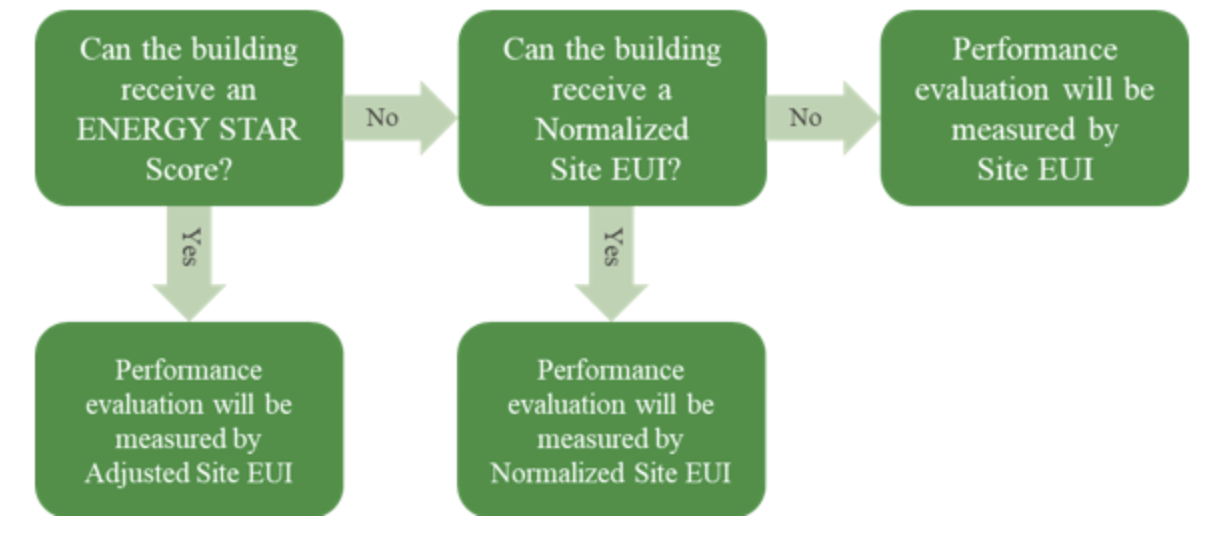
Users can select the metric they want to evaluate against in the report. Abisko also allows users to analyze against Site EUI values calculated by Abisko if there is incomplete energy data.
- BPS Target: Baseline_EUI * 80% (Represents a 20% reduction from baseline)
Calculating Penalties
Non-compliance penalties are assessed based on whether a building’s performance (e.g. ENERGY STAR Score or Source EUI) exceeds its target for a given year, starting with 2026. Click here to learn more from examples provided by the District.Standard Target Pathway
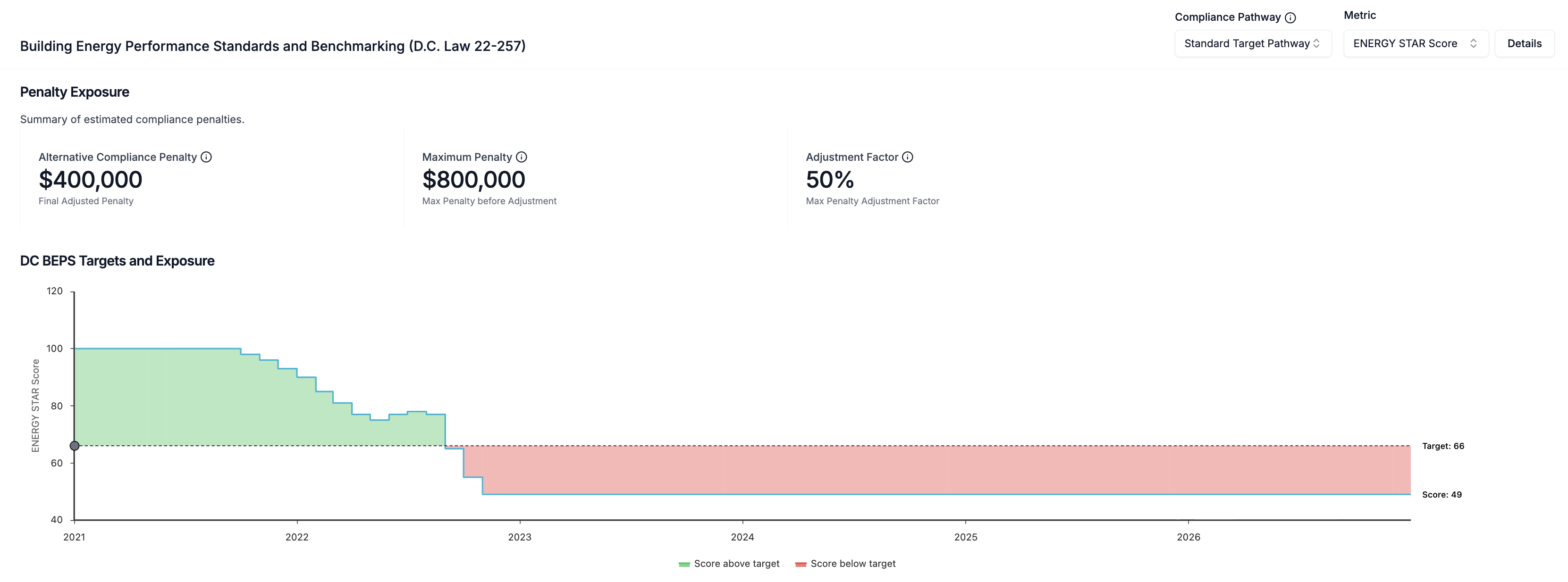
- Alternative Compliance Penalty (ACP): The alternative compliance penalty for the standard pathway is calculated by multiplying the maximum penalty by the adjustment factor.
- Maximum Penalty: The maximum penalty is the lower of: $10*GFA or $7,500,000
- Adjustment Factor: The adjustment factor is calculated by dividing the difference between the target value and reporting period performance metric by the difference between the target value and a 20% less efficient target.
- Click here (Appendix D) to see adjusted targets for ENERGY STAR Scores
Examples
- Calculate Maximum Penalty = Minimum [$10*GFA, $7,500,000]
- e.g. 60,000 ft2 * $10 = $600,000
- Calculate Adjustment Factor = Maximum [0, (score_target - reporting_period_score) / (score_target - adjusted_target)]
- e.g. Office with a projected 2026 ES score of 67: (71 - 67) / (71 - 55) = 25%
- e.g. Office with projected 2026 EUI of 123.6: (110.4 - 123.6) / (110.4 - 1.2*132.48) = 59.8%
- Calculate ACP = [maximum_penalty * adjustment_factor]
- e.g. Office with a projected 2026 ES score of 67: $600,000*25% = $150,000
- e.g. Office with a projected 2026 EUI of 123.6: $600,000*59.8% = $358,800
Performance Pathway
- Alternative Compliance Penalty (ACP): The alternative compliance penalty is calculated by reducing the maximum penalty by the percentage of the adjustment factor.
- Maximum Penalty: The maximum penalty is the lower of: $10*GFA or $7,500,000
- Reduction from Baseline: The percent difference between the baseline and reporting period EUI values.
- Adjustment Factor: The adjustment factor is calculated by dividing the reduction from baseline by 20, which represents the target percentage reduction from baseline.
Examples
- Calculate Maximum Penalty = Minimum [$10*GFA, $7,500,000]
- e.g. 60,000 ft2 * $10 = $600,000
- Calculate Reduction from Baseline = Minimum [0, (baseline - reporting_period_value) / baseline * 100]
- e.g. Baseline = 90 kBtu / ft2 || Reporting Period EUI = 82.4 kBtu / ft2
- Reduction from Baseline = [(90 - 82.4) / 90 * 100] = 8.44%
- Calculate Adjustment Factor = Reduction from Baseline / 20
- e.g. 8.44 / 20 = 42.2%
- Calculate ACP = [maximum_penalty * (1-adjustment_factor)]
- $600,000 * (1-.422) = $346,800
Setting Custom Baselines
Abisko automatically calculates EUI targets using the default methodology outlined in published technical guidance. In some cases, however, buildings may be subject to alternative prescribed baselines, or users may wish to evaluate non-compliance penalties under different assumptions. To support these use cases, Abisko allows users to define a custom EUI baseline for the property. Once a custom value is applied, Abisko automatically recalculates all compliance metrics and penalty estimates. If no custom values are defined, Abisko uses the default calculated values.To Add/Edit/Delete Custom Targets or Baselines
Property → Compliance → Exposure → District of Columbia BEPS- Click on the Set Targets or Set Baseline button
- Open the sidebar
- To add/edit a custom value
- Hover the mouse over the row in the table for the value you would like to edit
- Click the edit icon that shows itself on the right side
- Edit the value and save
- To delete a custom value
- Hover the mouse over the row in the table for the value you would like to delete
- Click the trash icon that shows itself on the right side to delete
- To add/edit a custom value