Property Attributes
Beyond basic attributes such as property name, type, and ownership period, Abisko allows users to track advanced operational data that changes over time, as well as detailed information related to property uses and their associated attributes.Gross Floor Area (GFA)
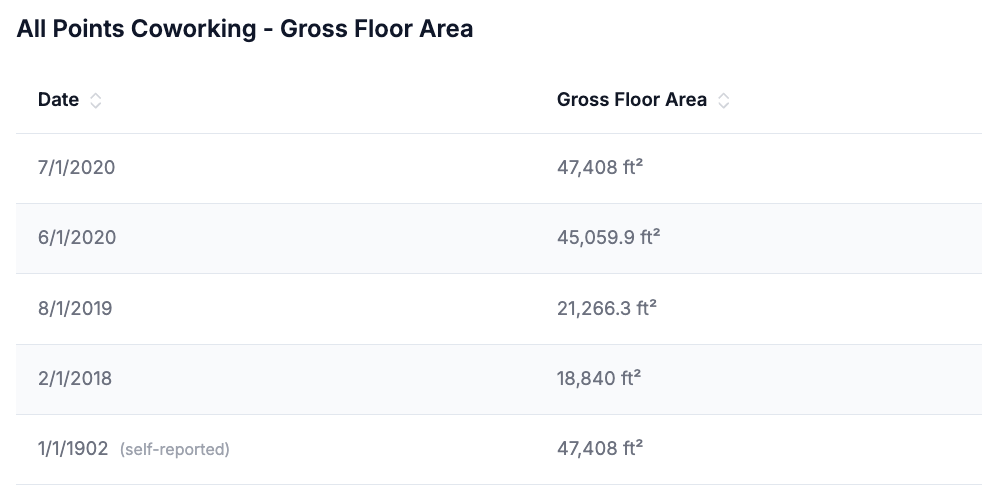
The Gross Floor Area impacts intensity-based performance metrics, such as Site EUI, WUI, GHGi. Abisko enables users to track GFA from multiple sources.Abisko tracks Self-reported GFA and Property Use GFA values. To maximize consistency with ESPM, Abisko uses the Property Use GFA values when available to calculate intensity metrics.
- Self-reported - GFA: This value is available for all properties (Abisko, ESPM) and can be updated at any time. However, no history of changes is saved.
- Property Use - GFA (ESPM only): These values are only available for ESPM properties and are derived from the sum of floor areas across all property uses. Values change any time any floor area of any ESPM property use changes.
To View & Access
Navigate to Property → Click Size text link in the property banner- The sidebar that opens contains all applicable GFA values for the property.
- Each value is effective from its associated date until superseded by a subsequent entry. The most recent entry is displayed at the top and represents the current (i.e. today’s) value as of its effective date.
- For Abisko properties, users will only see the property’s Self-reported GFA value.
- For ESPM properties, users view a mix of Self-reported GFA and Property Use GFA, which may change over time. The oldest value will always be the self-reported GFA value.
Vacancy Rate & Number of Occupants
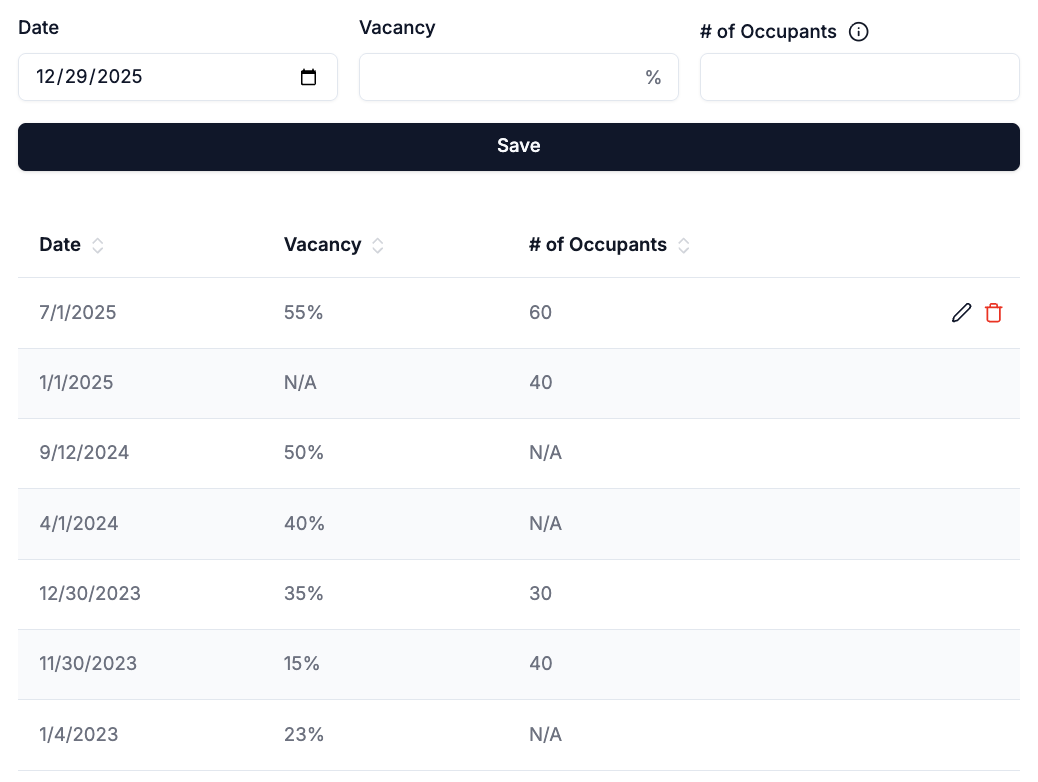
Track vacancy and occupancy rates at a property over time. Each value is effective from its associated date until superseded by a subsequent entry. The most recent entry is displayed at the top and represents the current (i.e. today’s) value as of its effective date.To add, edit, and delete
Navigate to Property → Click Vacancy text link in the property banner- To add a new entry
- Enter the values for the Date, Vacancy (%) and # of Occupants at the top of the sidebar and click save
- To edit an entry
- Hover the mouse over the row in the table for the entry you would like to edit
- Click the pen icon that shows itself on the right side of the row
- Update the fields in the row and click the checkmark icon to save
- To edit or delete an entry
- Hover the mouse over the row in the table for the entry you would like to delete
- Click the trash icon that shows itself on the right side of the row
Construction Status
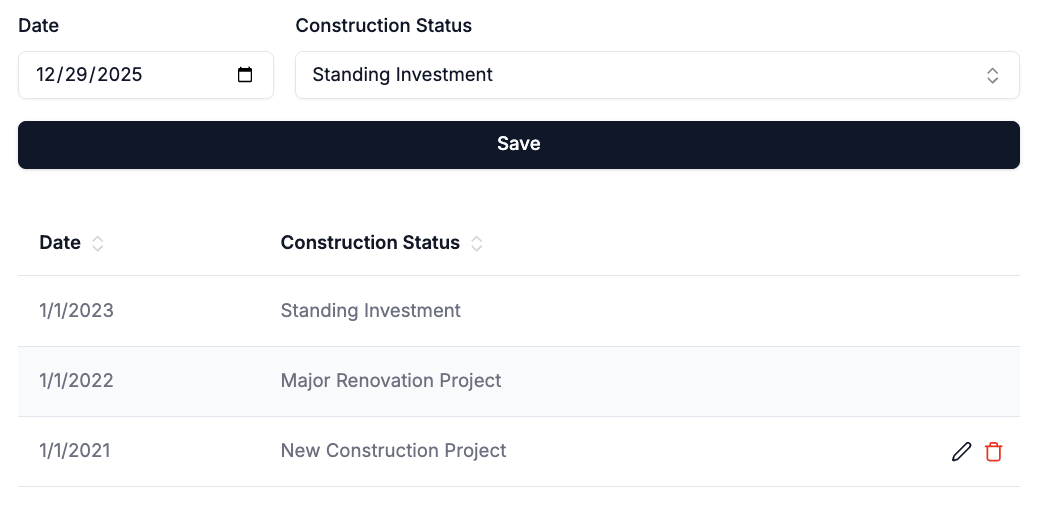
Track construction status over time. Each value is effective from its associated date until superseded by a subsequent entry. The most recent entry is displayed at the top and represents the current value as of its effective date.To enforce consistency, only GRESB options (e.g. New Construction, Major Renovation, Standing Investment) are available. All properties default to a construction status of ‘Standing Investment’.
To add, edit, and delete
Navigate to Property → Click Construction Status text value in the property banner- To add a new entry
- Enter the values at the top of the sidebar and click save.
- To edit an entry
- Hover the mouse over the row in the table for the entry you would like to edit
- Click the pen icon that shows itself on the right side of the row
- Update the fields in the row and click the checkmark icon to save
- To edit or delete an entry
- Hover the mouse over the row in the table for the entry you would like to delete
- Click the trash icon that shows itself on the right side of the row
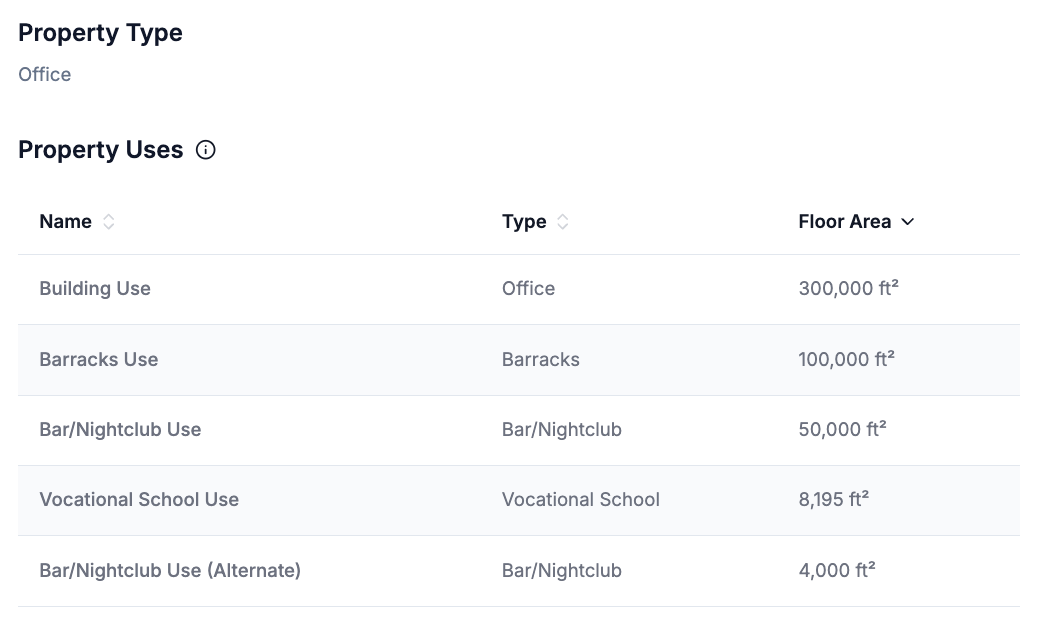
Property Uses
Property uses and their associated details are critical for properties subject to Building Performance Standard (BPS) policies, as these policies often derive performance baselines and targets from property use classifications and attributes. These property uses and their details also directly impact Energy Star certification and scoring.Currently only available for ESPM properties.
To view Property Uses
Navigate to Property → Click Property Uses text link in the property banner- Hover the mouse over any individual property use to see a list of all associated property use details