Data coverages in Abisko are set by using a current as of methodology. This means Abisko always reports the data coverage values from the most recent date prior to the end of the selected reporting period, removing the need to create new entries every year if nothing changes.Example: There are two whole building data coverage entries with the following dates
1/1/1900 (default) & 1/1/2023 (user set)
For any reporting period before 1/1/2023 (e.g. 6/30/2021, 12/31/2022)
Whole building data coverages associated with the default date (1/1/1900) are reported
For any reporting period after 1/1/2023 (e.g. 12/31/2023, 6/30/2025)
Whole building data coverages associated with the user set date (1/1/2023) are reported
To guarantee specific coverage values for a reporting year, users can set the data coverage date to December 31 of that year.
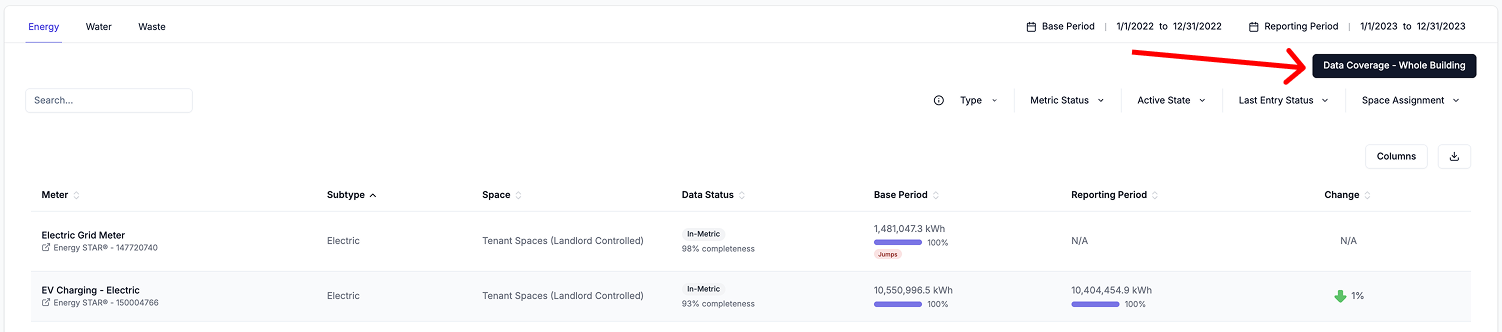
Click on the Data Coverage toggle in the top-right plot to view the distribution of data coverages for all properties for the selected reporting period.
Click on the pink Data Coverage progress bar of any property to open a sidebar to view the property’s whole building data coverage for the selected reporting period
Click here to learn how to enter data coverage values.


.png?fit=max&auto=format&n=W9COhIzjFYd7p3yh&q=85&s=6496545e3a6be27e1f74c685ecc9aee6)