Configure Table Columns
Users can configure tables to display specific data, sort columns to analyze trends, and download data for external analysis.Add or remove table columns
- Click on the Columns button located above the table on the right.
- Select the columns to hide or display in the table by clicking on the field names.
Some tables, like the one in the in the Portfolio Dashboard tab (below), also allow users to search for specific values in each column.

Download table data
- Click on the download button located next to the Columns button
Some tables allow users to select whether to download data as presented in the table or to download all raw data used to generate the data displayed in the table.
Interact with Plots
Interact with plots and download data for external analysis.Show & hide data
- Show and hide data in certain plots by clicking the series within the plot legend.

Hover over plots
- Mouseover different parts of a plot to learn more about the data in the plot

Download data
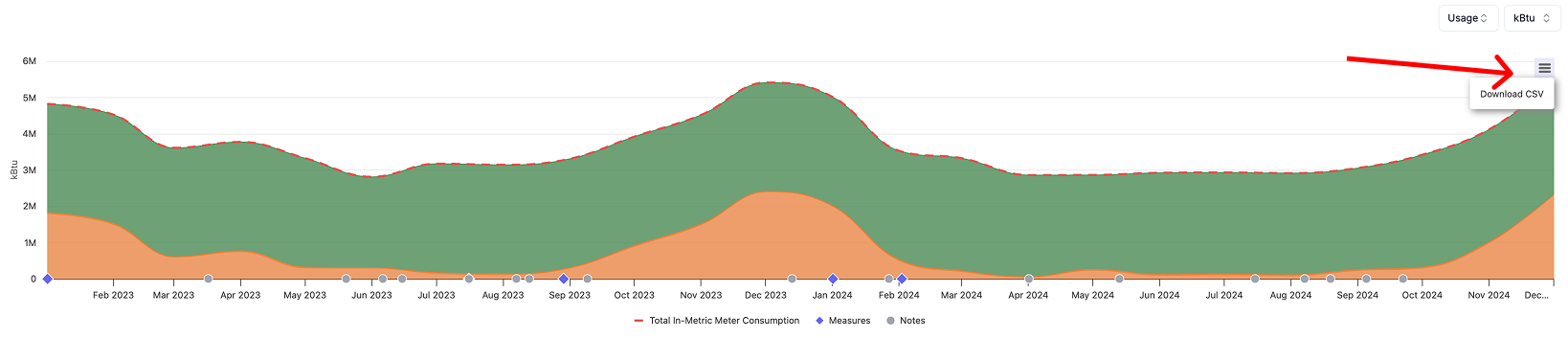
- Download data from certain plots by clicking the hamburger menu in the top-right of the plot.