

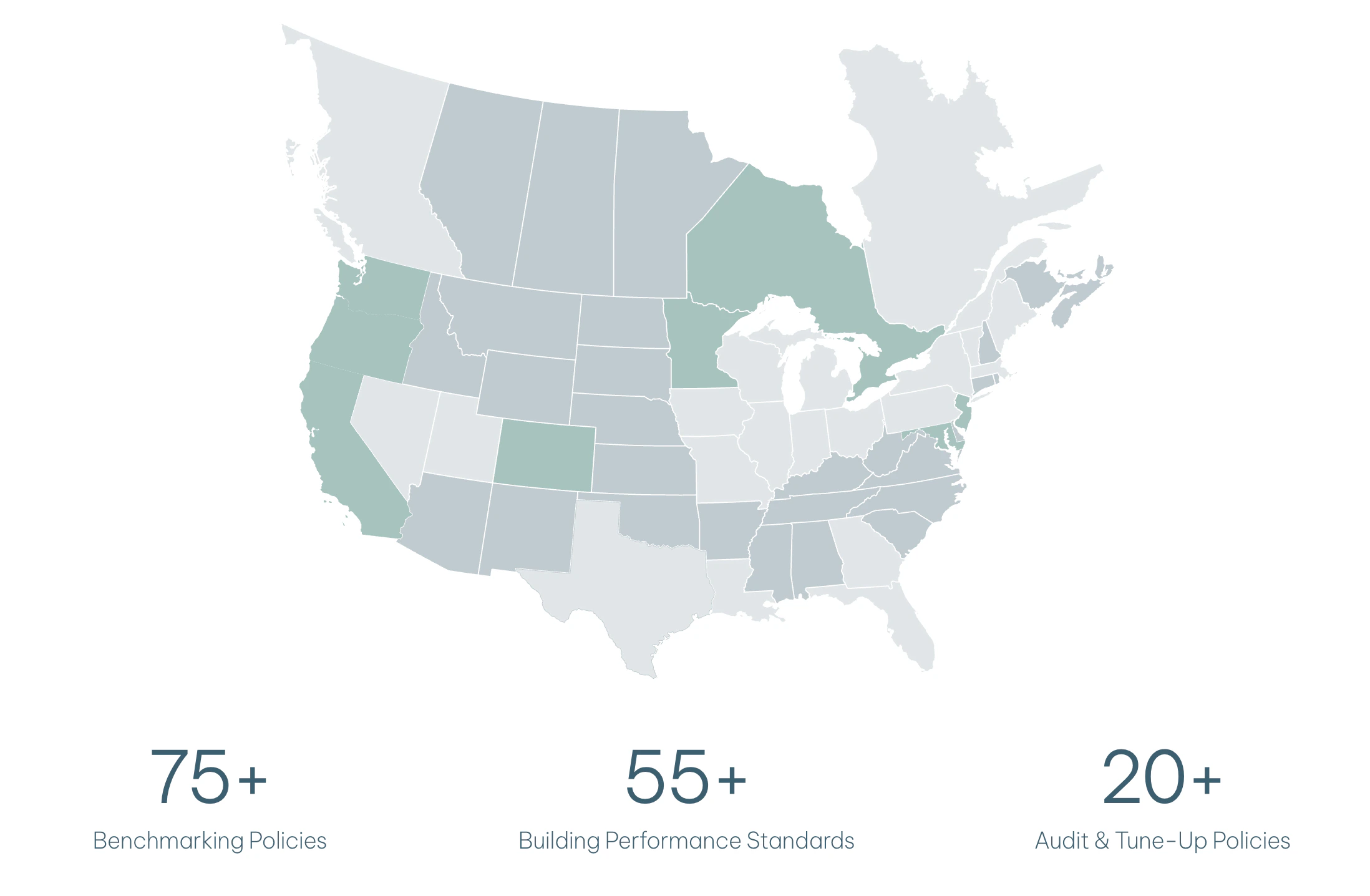
Viewing Policies
Users can view a list of all policies and their associated details by clicking their username in the top-right corner of the application and selecting Policies. The search bar can be used to find specific policies and the table can be sorted by policy type, location, phase and more.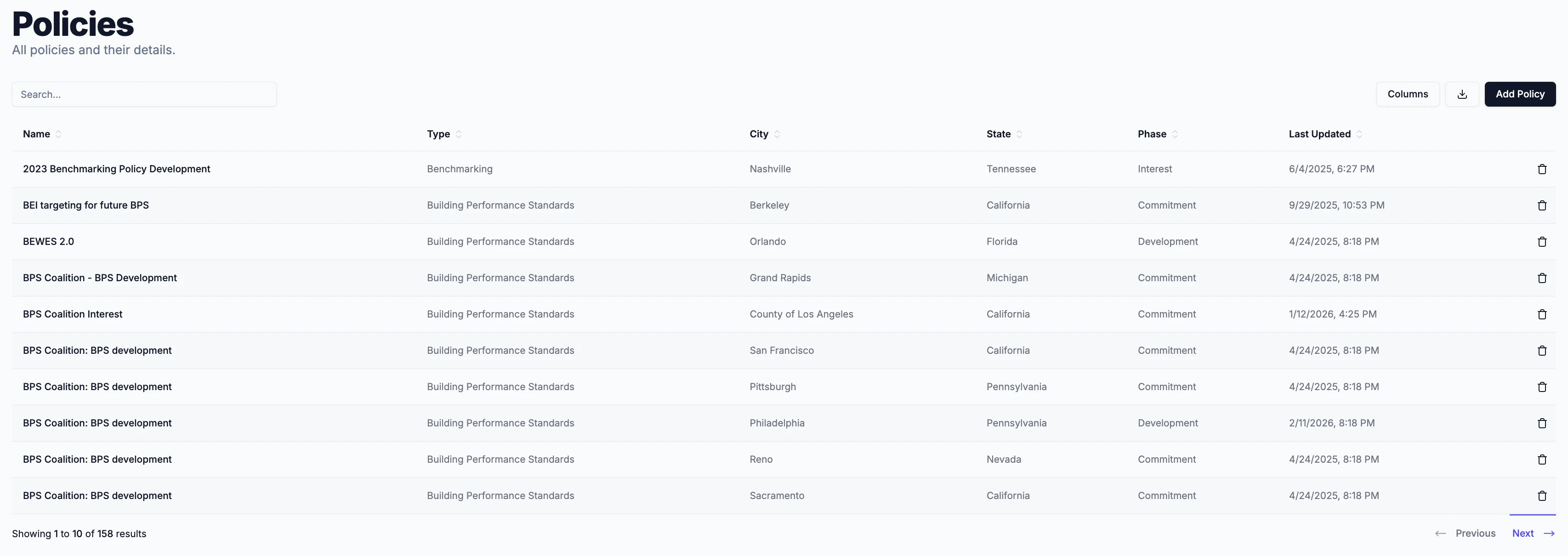
Policy Phases
Lifecycle of policy development and implementation phases.- Interest: Early-stage awareness; a jurisdiction is exploring the idea of a policy but has made no formal move toward it.
- Advocacy: Stakeholders, coalitions or organizations actively campaign and build public/political support to get the policy on the agenda.
- Commitment: The jurisdiction formally pledges to pursue and pass the policy (e.g., signing on to a coalition commitment), without the policy itself existing yet.
- Development: The policy is actively being drafted, negotiated, and refined. Legislative language is written and stakeholder input is incorporated before formal passage.
- In Effect: The policy is signed into law and compliance obligations are live and/or pending.
- Retired: The policy has been repealed, sunset, or superseded and is no longer in effect.
Custom Policies
In addition to the policies automatically tracked by Abisko, users can create custom policies and track them for individual properties across their portfolio. This allows users to track voluntary disclosures, corporate reporting requirements, global standards and more.Only manager level users can add custom policies.
- To add a custom policy
- Identify the property and policy for adding a submission
- Click on the Add Submission button in the policy header
- Enter the submission details in the sidebar and click save
Managing Compliance
Users can take the following steps to begin managing regulatory exposure, tracking submissions and evaluating non-compliance penalties associated with Building Performance Standards.1
Evaluate regulatory exposure
Any time a property is created or imported from an external source (e.g. ESPM), Abisko automatically identifies all benchmarking, BPS, and audit & tune-up policies to which it may be subject based on the property’s address.
2
Confirm policy requirements for each property
A property may be exempt from a policy based on its type, size, financial status, or other factors. For this reason, Abisko does not automatically exempt properties from policies; it only identifies which policies a property may be subject to. To confirm whether a property is subject to a specific policy, users should contact the appropriate policy office and/or consult that policy’s covered buildings list.
3
Set Exemptions
For properties confirmed to be exempt from specific policies, users should mark those policies as exempt in Abisko. Doing so excludes them from upcoming deadlines, making it easier to track only the submissions that require action.
4
Create Submissions
For properties covered by policies (i.e. non-exempt), users should create submissions for each compliance cycle with appropriate deadlines, statuses, and attachments. Users can review policy details in Abisko and create multiple submissions per property and policy to track compliance across several years, including details such as who is managing each submission and whether third-party verification is required.
5
Track Submissions
Users can track upcoming deadlines and submissions across their portfolio and should update submission statuses as they change (e.g. filed, rejected, approved). Attachments can also be added to track acceptance, evidence, and other communications from the city.