Users can track policies and submissions for all properties across their portfolio. Submissions can be added for any number of compliance cycles and portfolio and property-level dashboards help users focus on upcoming deadlines and requirements.
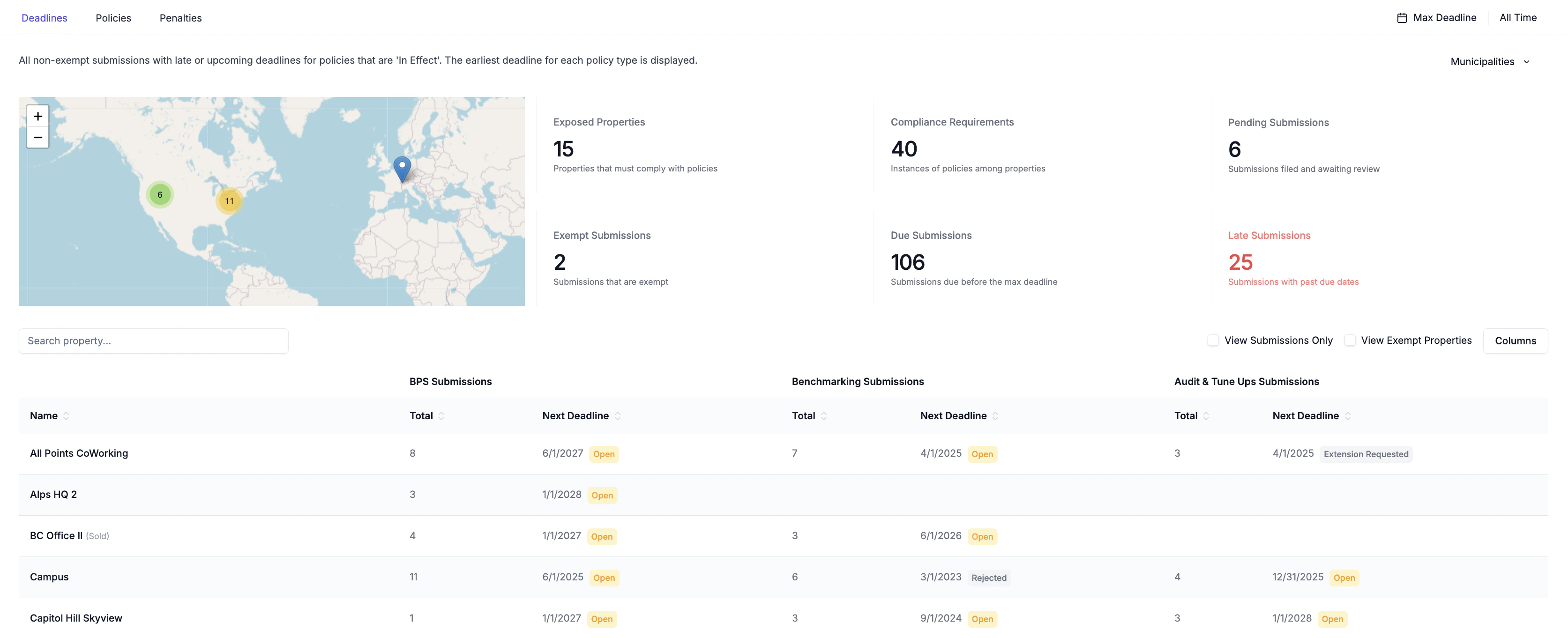
Navigate to Portfolio → Compliance → DeadlinesThe Deadlines dashboard shows all properties subject to Benchmarking, BPS and Audit & Tune-up policies as well as a summary of all submissions and upcoming deadlines.
Use the Max Deadline filter to view all submissions with upcoming deadlines.
Submissions must be added for each policy in order to be tracked in the dashboard. If no submissions are added for a non-exempt policy to which a property is subject, a warning icon will appear in the appropriate row to guide the user to begin adding submissions.
Exposed Properties: The number of properties that have at least 1 non-exempt policy to which they are subject.
Compliance Requirements: The number of non-exempt policies to which all properties across the portfolio are subject (e.g. a property could be subject to 3 different policies)
Pending Submissions: Submissions that have a status that is Filed or Extension Requested, but have not yet been marked as complied.
Exempt Submissions: Submissions due before the max deadline that have a status of Exempt.
Due Submissions: Submissions due before the max deadline with a status of Open, Ready for Review, Ready to File, Extension Requested, Rejected or Resubmission Requested.
Late Submissions: Submissions with a deadline before today that are still due.
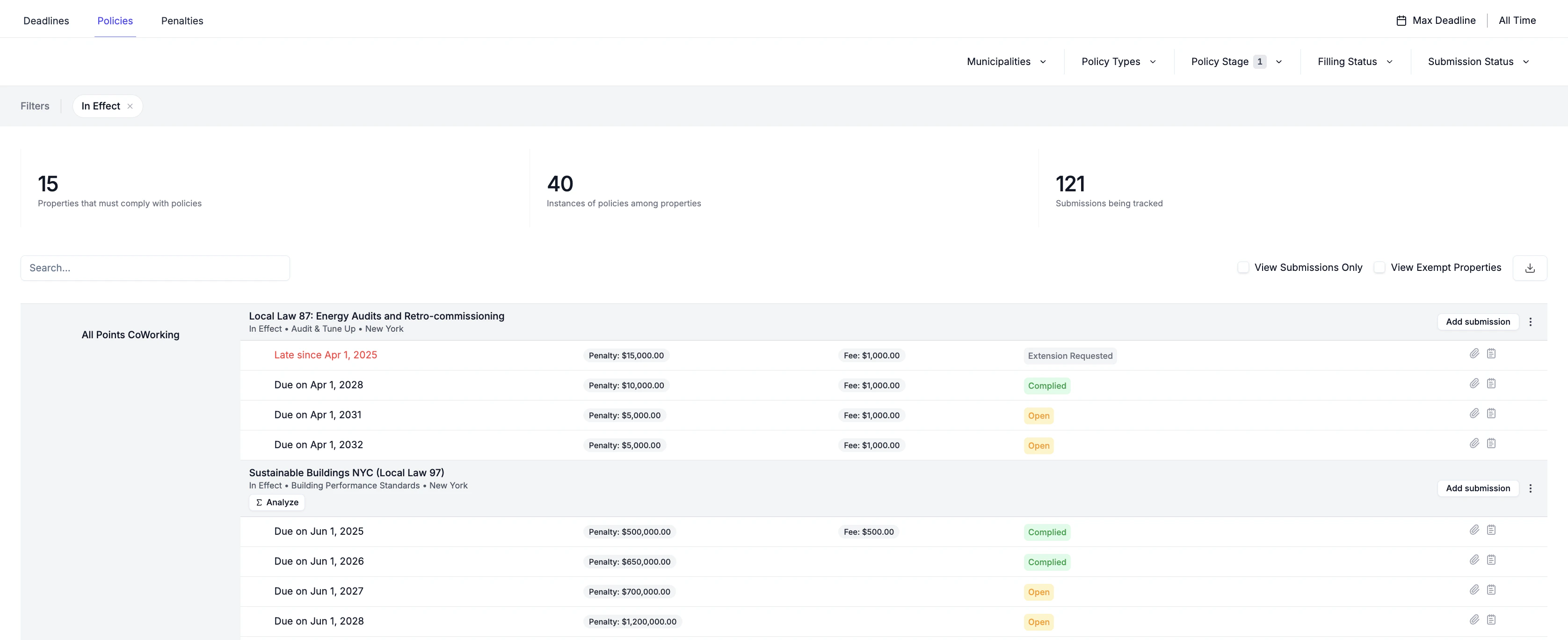
Navigate to Portfolio → Compliance → PoliciesUsers can apply filters to focus on submissions with upcoming deadlines, narrow results by specific policies or geographies, or track the status of submissions across all properties.
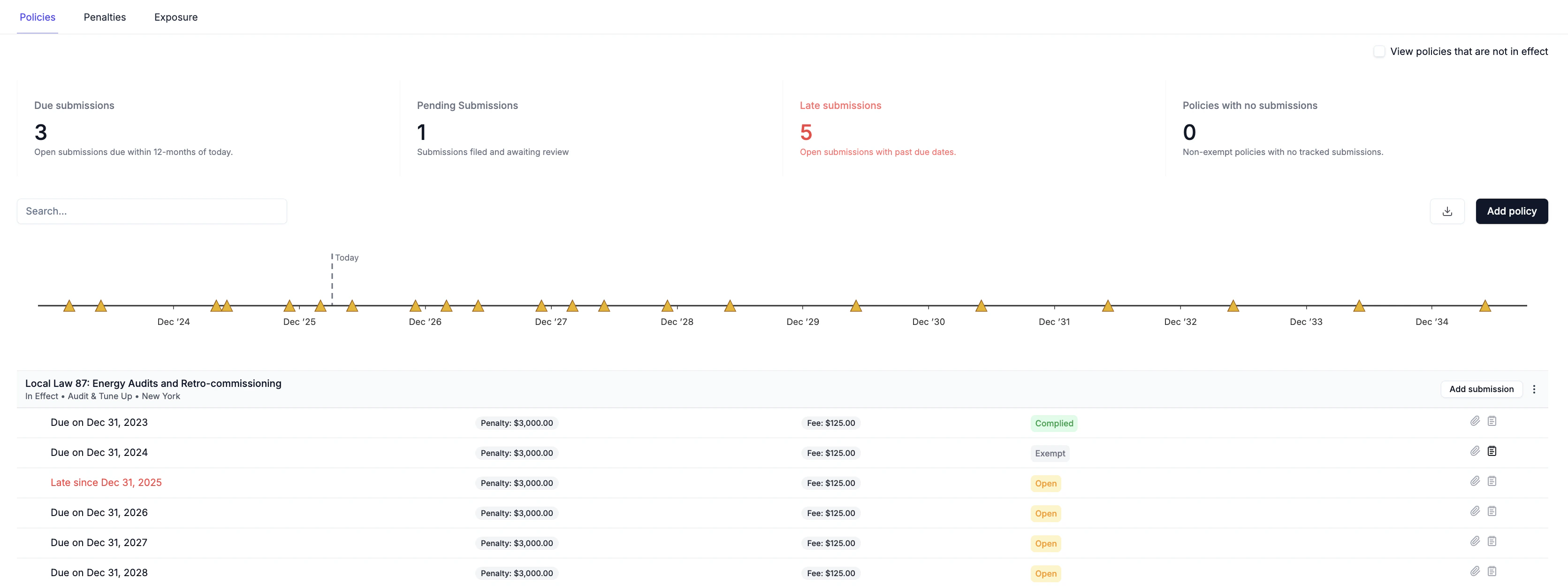
Navigate to Property → Compliance → PoliciesUsers can view submissions for all policies on a timeline to identify upcoming deadlines. Summary stats also display the number of submissions that are due, late, and pending.
Submissions can be added to policies and properties at the property and portfolio levels.Navigate to [Portfolio / Property] → Compliance → Policies
To add a submission
To rapidly add multiple submissions, check Create More at the bottom of the sidebar to copy values into a new submission after saving. Submissions can also be bulk imported.
Identify the property and policy for adding a submission
Click on the Add Submission button in the policy header
Enter the submission details in the sidebar and click save
To edit a submission
Upload attachments to track receipts, verification reports, submission evidences and more.
Click the row in the table for the submission you would like to edit
Edit the submission details and click save
To delete a submission
Hover the mouse over the row in the table for the submission you would like to delete
Click the trash icon that shows itself on the right side to delete
Abisko automatically identifies policies to which a property may be subject based on its address. However, a property may be exempt from certain policies or compliance cycles based on its type or size. Users can mark these exemptions to exclude them from upcoming deadlines, making it easier to track only the submissions that require action.
To mark a policy as exempt
Identify the property for which to mark a policy as exempt
Click the 3 dots in the header next to the Add Submission button and select Edit
Check the Exempt box and click save
Any submissions tracked for exempt policies will be excluded from upcoming deadlines.
To mark a submission as exempt
Click the row in the table for the submission you would like to edit
Change the status of the submission to Exempt and click save
Exempted policies and submissions will be greyed out when viewed by users (see below).