> ## Documentation Index
> Fetch the complete documentation index at: https://docs.abisko.io/llms.txt
> Use this file to discover all available pages before exploring further.
# Navigation
> Learn how to navigate to properties, groups and portfolios.
As users navigate between properties and portfolios, they will interact with dashboards, tables, plots and reports that are contained within tabs. Tabs are containers that organize functionality by purpose, allowing users to enter, manage, and analyze data across different aspects of properties and portfolios.
Users can switch between tabs based on what they are trying to accomplish and Abisko maintains context as users navigate between tabs, properties and portfolios. For example, if a user jumps from the portfolio-level **Property Trends** tab to a property, they will land in the property-level **Annual Trends** tab. If they jump from a portfolio-level **GRESB** tab to a property, they will land in the corresponding property-level **GRESB** tab.
Context managment between tabs provides an intuitive and efficient experience for all users.
## Universal Search
At the top of the application, users can find a universal search bar from which they can navigate to properties, groups and other account portfolios.
### **To use the search bar**
* Click on the search bar at the top of the application
* Start typing the name of a property or portfolio
* The search bar will begin to autofill based on your search
* Matching properties and portfolios will be displayed
* Click on the property or portfolio to which you want to navigate
***
## Jump from a Property to Portfolio
Users can quickly jump back up to a group or account from within a property.
### **From the property banner**
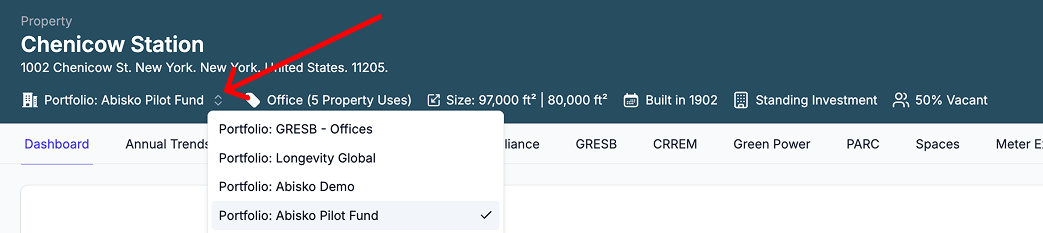 * In the property banner, if the portfolio to which you want to navigate is already displayed
* Click on the portfolio name
* If the property belongs to multiple groups
* Click on the arrow icon next to the portfolio name and select the target portfolio
* Click on the portfolio name after the banner updates
***
## Jump from a Portfolio to Property
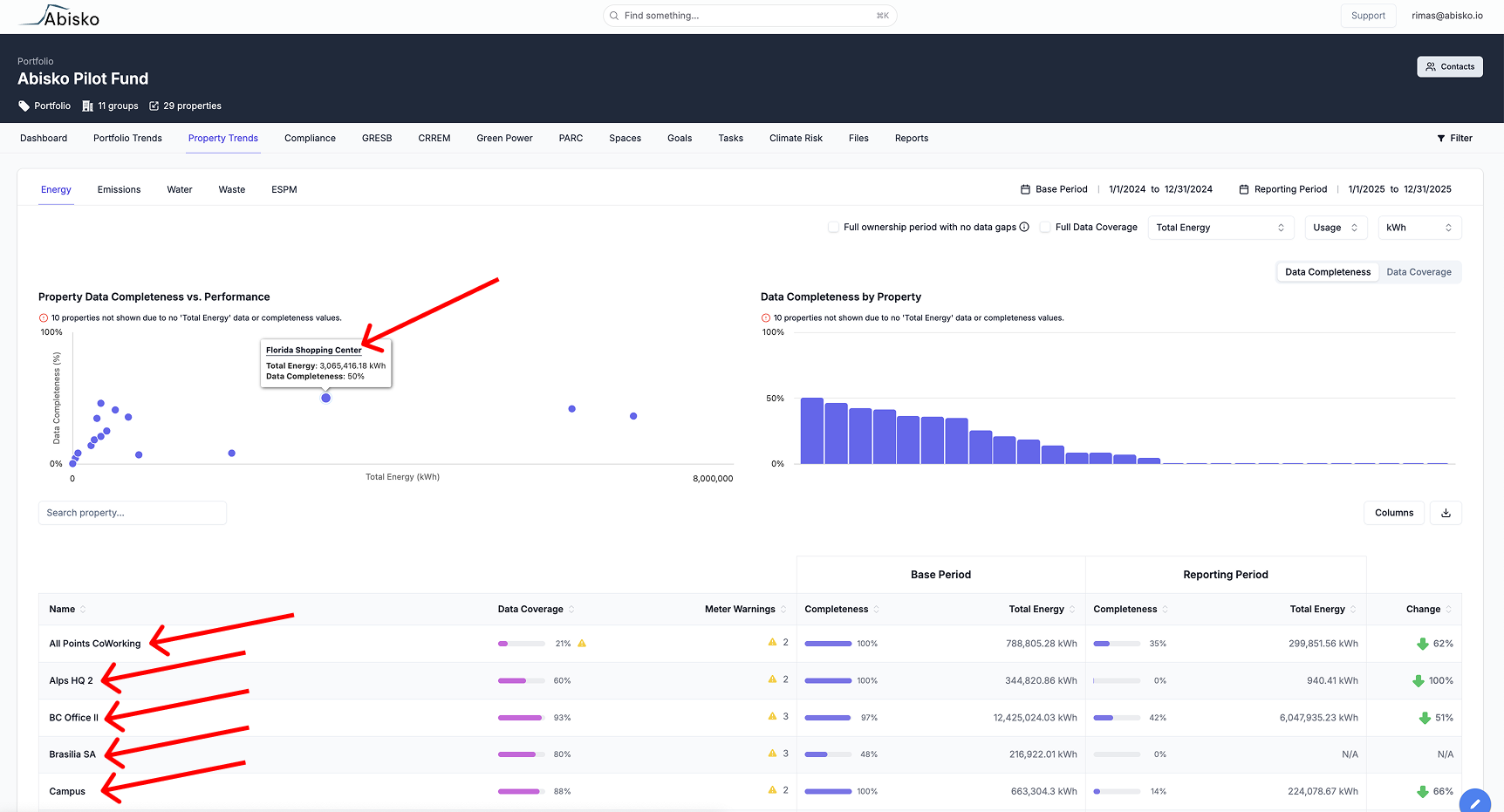
Users can quickly jump to a property by clicking the property name within any portfolio tab or plot.
If a user navigates (e.g. clicks a link or uses search) to another property or portfolio from within a specific tab (e.g. GRESB), they will land in the same tab in their target destination.
### **From the portfolio banner**
* Click on the properties link in the property banner to open a sidebar with a list of all properties in the portfolio
* Search for the target property and click on the name
* In the property banner, if the portfolio to which you want to navigate is already displayed
* Click on the portfolio name
* If the property belongs to multiple groups
* Click on the arrow icon next to the portfolio name and select the target portfolio
* Click on the portfolio name after the banner updates
***
## Jump from a Portfolio to Property
Users can quickly jump to a property by clicking the property name within any portfolio tab or plot.
If a user navigates (e.g. clicks a link or uses search) to another property or portfolio from within a specific tab (e.g. GRESB), they will land in the same tab in their target destination.
### **From the portfolio banner**
* Click on the properties link in the property banner to open a sidebar with a list of all properties in the portfolio
* Search for the target property and click on the name
 ### **From within a tab**
* Within any table or plot (mouse hover), click on the name of the property to which you want to navigate
### **From within a tab**
* Within any table or plot (mouse hover), click on the name of the property to which you want to navigate
 ***
## ESPM Integrated Links
ESPM links are integrated throughout the platform to enable users to instantly jump to a specific meter or property in ESPM to quickly address any identified issues.
Users must be logged into ESPM to view their data in ESPM.
**To navigate to an ESPM property page**
* Click on the **Energy STAR®** button in the property banner (top-right)
* A new tab will open to login to ESPM and view the property page
**To navigate to an ESPM meter page**
* Click on the **Energy STAR®** meter link located below each ESPM meter name
* A new tab will open to login to ESPM and view the meter page
***
## ESPM Integrated Links
ESPM links are integrated throughout the platform to enable users to instantly jump to a specific meter or property in ESPM to quickly address any identified issues.
Users must be logged into ESPM to view their data in ESPM.
**To navigate to an ESPM property page**
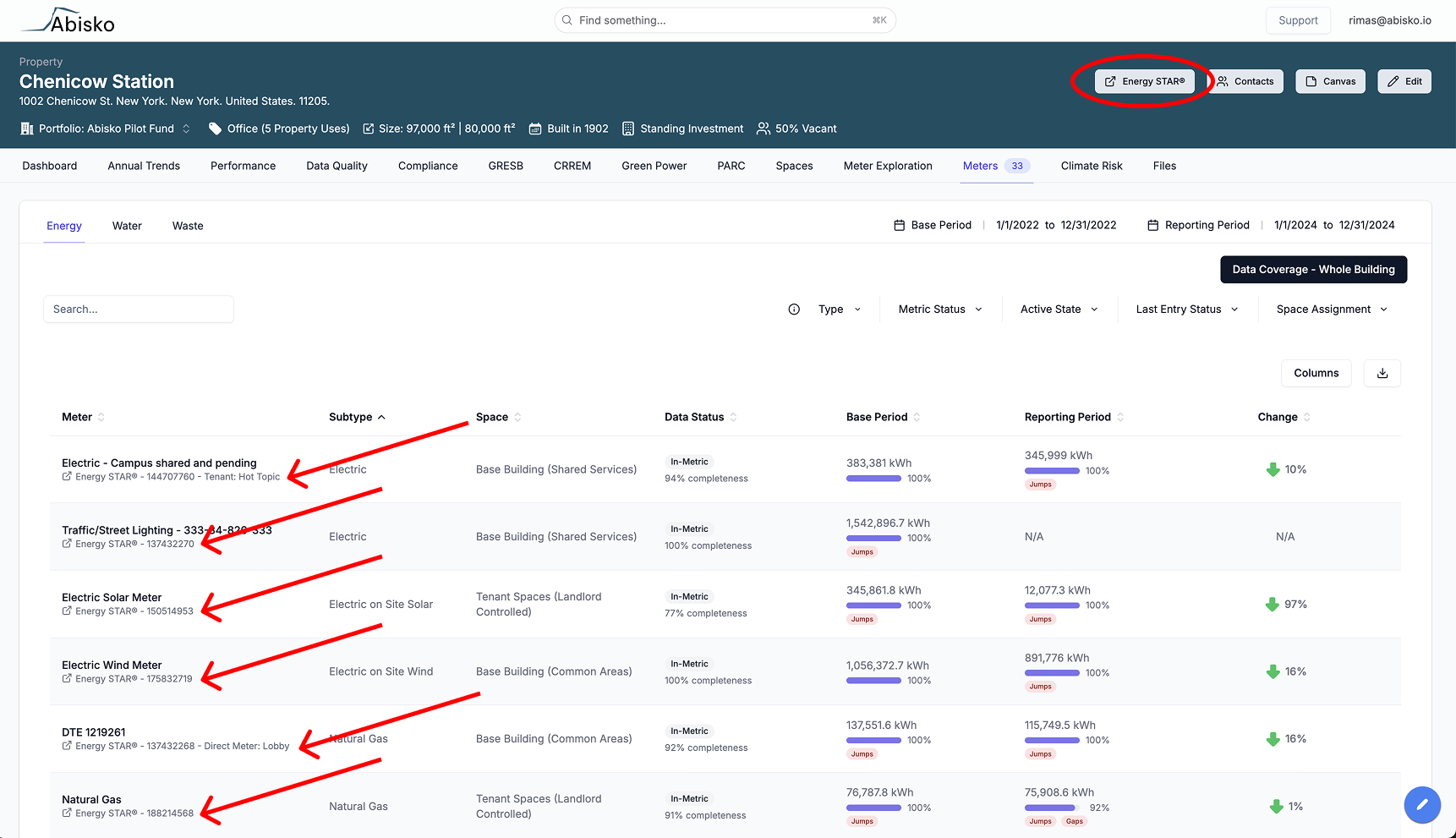
* Click on the **Energy STAR®** button in the property banner (top-right)
* A new tab will open to login to ESPM and view the property page
**To navigate to an ESPM meter page**
* Click on the **Energy STAR®** meter link located below each ESPM meter name
* A new tab will open to login to ESPM and view the meter page
 ***
## Jump to Account Dashboard
Users with access to multiple portfolios can quickly jump to their account dashboard by clicking on the logo in the top-right of the application.
Users with access to a single portfolio will automatically jump to their top-level account portfolio.
***
***
## Jump to Account Dashboard
Users with access to multiple portfolios can quickly jump to their account dashboard by clicking on the logo in the top-right of the application.
Users with access to a single portfolio will automatically jump to their top-level account portfolio.
***