> ## Documentation Index
> Fetch the complete documentation index at: https://docs.abisko.io/llms.txt
> Use this file to discover all available pages before exploring further.
# Certifications & Ratings
> Tracking completed certifications and ratings.
The Certifications & Ratings tab in PARC allows users to record and manage building certifications and performance ratings for each property. Both active and expired records are tracked, providing a full history of a property's certifications and ratings over time.
### Navigation
* **Property → PARC → Certifications & Ratings**
* **Portfolio → PARC → Certifications & Ratings**
### The Certifications Table
The table displays all certifications and ratings recorded for each property.
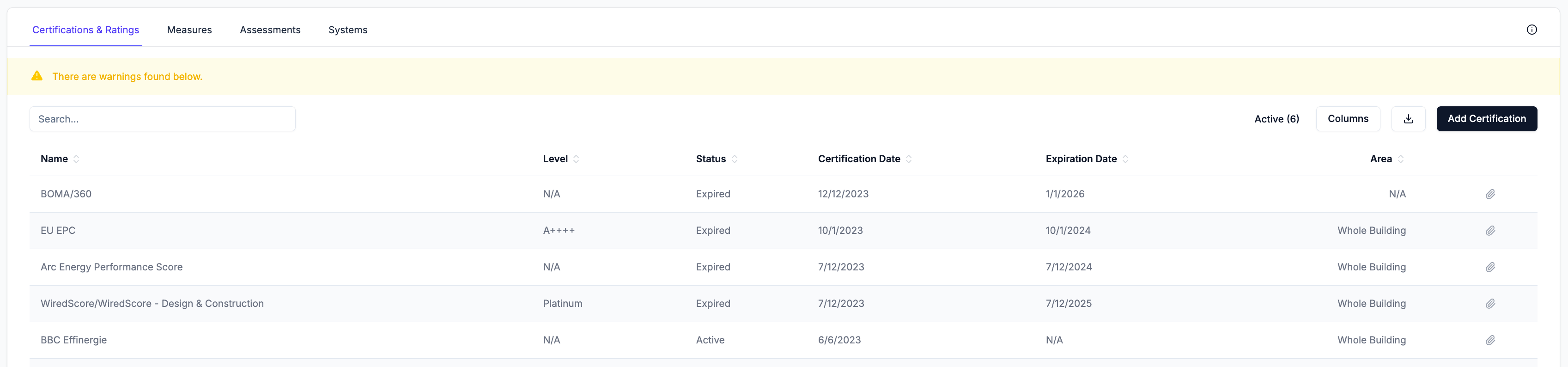 The **Active (#)** filter at the top right can be toggled to show only certifications and ratings that were awarded and are still active today. The number reflects the current active count. Use the **Columns** menu to show or hide individual columns and the search bar to filter records by name. Export all records in the table as a CSV by clicking the download button.
### Adding a Certification
Click **Add Certification** to open the entry form. Fill in all applicable fields and add any applicable attachments. Click **Save** to add the record.
### Editing and Deleting Records
Hover over any row to reveal the **edit** (pencil) and **delete** (trash) icons. Click the pencil icon to open the edit form, which contains the same fields as the Add Certification form. Click the trash icon to delete the record.
The paperclip icon is always visible on each row and can be used to attach files directly to an existing record without opening the full edit form.
### Warnings
If any records contain missing or inconsistent data, a warning banner appears at the top of the table. Review the records flagged below the banner to identify and resolve the issue.
The **Active (#)** filter at the top right can be toggled to show only certifications and ratings that were awarded and are still active today. The number reflects the current active count. Use the **Columns** menu to show or hide individual columns and the search bar to filter records by name. Export all records in the table as a CSV by clicking the download button.
### Adding a Certification
Click **Add Certification** to open the entry form. Fill in all applicable fields and add any applicable attachments. Click **Save** to add the record.
### Editing and Deleting Records
Hover over any row to reveal the **edit** (pencil) and **delete** (trash) icons. Click the pencil icon to open the edit form, which contains the same fields as the Add Certification form. Click the trash icon to delete the record.
The paperclip icon is always visible on each row and can be used to attach files directly to an existing record without opening the full edit form.
### Warnings
If any records contain missing or inconsistent data, a warning banner appears at the top of the table. Review the records flagged below the banner to identify and resolve the issue.